
Texture repetition is one of the most common issues in 3D modeling and game design. When you apply a standard photograph to a large surface like a wall or the ground, the borders of the image create an ugly, repeating grid pattern.
If you have ever wondered how to create seamless textures without spending hours in Photoshop, our 4K Seamless Texture Generator solves this instantly by intelligently blending the edges and balancing the low-frequency noise (lighting) across your image.
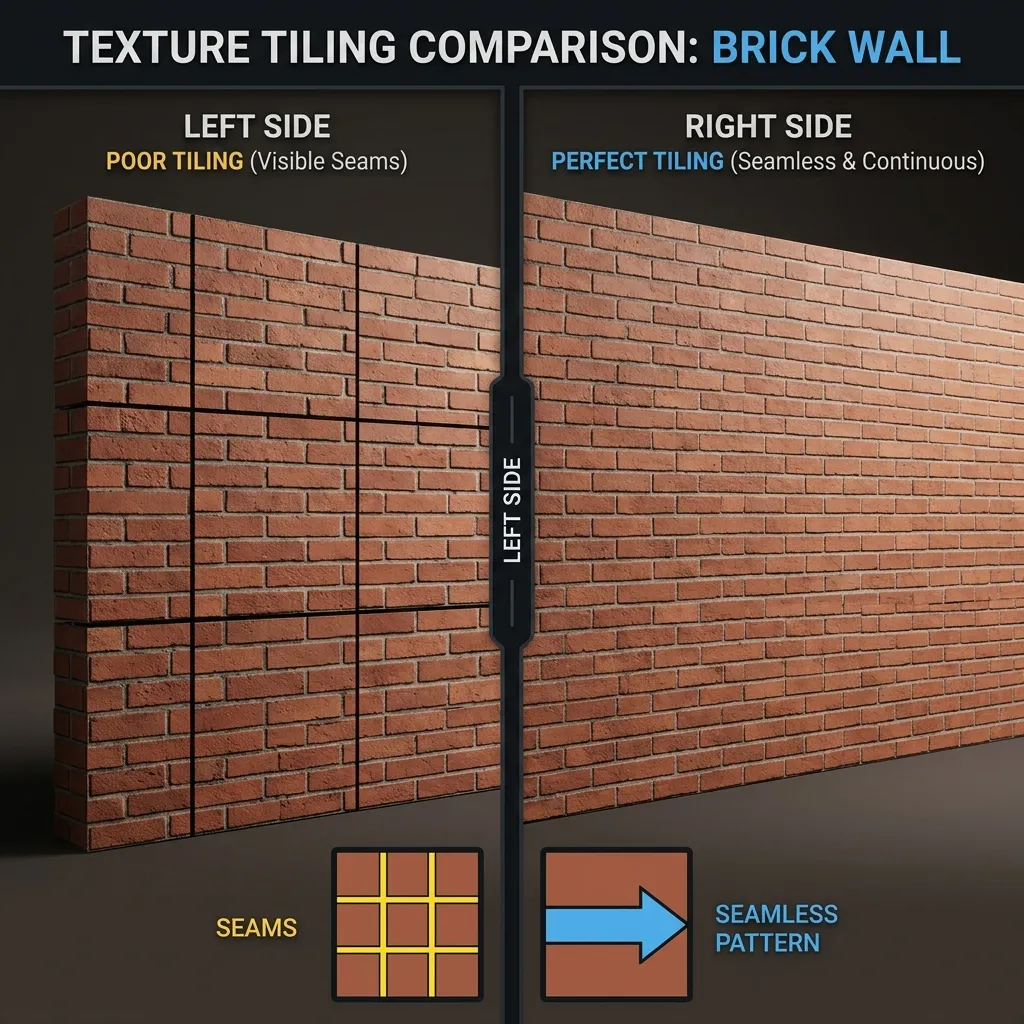
Comparison: A standard tiling texture with obvious grid lines (Left) vs. a properly processed seamless texture (Right).
How to Make a Texture Seamless
In both video games and architectural rendering, surfaces like grass, brick, and asphalt are massive. It is impossible to load a single texture that covers the entire area without running out of VRAM. Instead, artists use a small texture and “tile” it across the surface.
If the left edge of your texture doesn’t perfectly match the right edge, the tiling will break the illusion of realism. Learning how to make a texture seamless is essential. A seamless texture is mathematically engineered to disguise these borders completely.
Step-by-Step: How to Create Seamless Textures
Our browser-based 4K Seamless Texture Generator makes this process fast and automatic, and keeps your data entirely within your browser (no uploads to external servers).
Step 1: Upload or AI Generate Your Image
You have two options to start. You can drag and drop an existing photograph (JPEG, PNG, WebP) into the tool.
Alternatively, if you don’t have a source image, use our built-in AI Generator:
- Click the AI Generate tab on the main interface.
- Select your AI model. (We highly recommend the Nano Banana series models for photorealistic, production-ready results. For rapid prototyping and fast testing, select Flux or Z-Image-Turbo).
- Enter a detailed text prompt (e.g., “photorealistic red brick wall, top-down view, 4k”).
- Click Generate. Once the image appears, click Send to Seamless to automatically load it into the seamless processor.
Step 2: Choose Your Generation Mode
The tool offers different algorithmic approaches depending on the type of texture you uploaded to make a texture seamless:
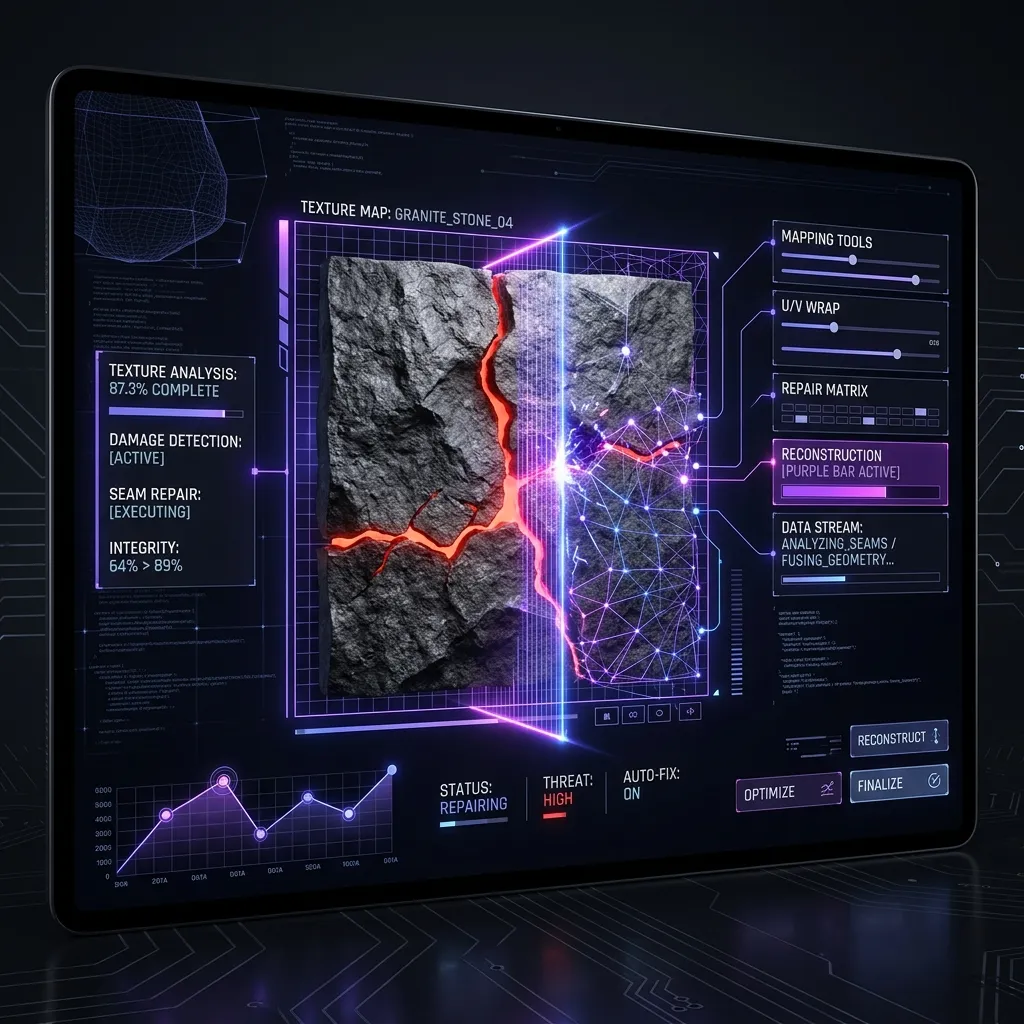
The 4K seamless texture generator analyzes the frequency and structure of the image to blend borders naturally.
- Simple Mirroring: Folds the image over itself. Great for highly abstract noise, but can create obvious “kaleidoscope” repeating patterns for structured materials like bricks.
- Advanced Blending (Patching): The tool slices the image and uses an AI algorithm to blend the center and the edges. This is the optimal setting for almost all natural surfaces and photographs.
Step 3: View the Tiling Preview
To ensure your texture tiles perfectly, use the 3D preview viewport on the right side. Increase the Scale (Tiling) slider to make the texture repeat many times across the geometry. Look for any repetitive “dark spots” or “light spots”.
Step 4: Export Your 4K Assets
Once you are satisfied with the seamless repetition:
- Click Download Seamless Texture to get the fixed image.
- You can now take this seamless texture and send it to our PBR Map Generator — Try Brick Pavement to extract its Normal, Roughness, and Ambient Occlusion maps for a complete 3D material.
Explore Specific Material Tutorials
Looking for material-specific tiling setups and workflow tips? Check out our dedicated material tutorials:
- Architectural Surfaces: Concrete Textures · Cinder Brick Walls · Marble Slabs · Venetian Terrazzo · Microtopping Plaster · Moroccan Stucco
- Metals, Wood & Glass: Wood Grain Textures · Brushed Brass Metal · Grey Lacquer Surfaces · Painted Glass
- Landscape & Organic Ground: Grass Terrain Guides · Dirt & Sand Textures · Water Caustics
- Textiles & Craft Materials: Rug & Carpet Textures · Knit & Fish Net Fabrics · Craft Paper
Ready to synthesize clean tileable materials in seconds? Try our 4K Seamless Texture Generator Now — Try Marble Slab.
Related reading: What is a Tileable Texture? · Make Any Image Seamless Online · What is a Normal Map? · Roughness Map Guide